阅读本篇之前,假定读者已经有了Node.js的基础,如需要补充Node.js知识的,请自行百度。

Hexo是在Node.js框架下的一个项目,利用Node.js提供的强大功能,完成从Markdown到静态网页的转换。

NexT是Hexo项目下的一个主题插件,提供可高度定制的页面外观。

Hexo博客专题索引页

1. 我们要做什么

  1. 搭建Node.js环境
  2. 下载Hexo项目
  3. 下载NexT的主题插件
  4. 运行博客

2. 在Windows系统下安装Node.js

在Windows下,Node.js的核心是命令行可执行文件Node.exe。无论安装版或者绿色版,只要满足以下两个基本条件,Hexo即可运行。

  1. node.exe在命令行控制台的当前文件夹,或者可以通过系统环境变量path找到。
  2. Node.js相关的工具包(如npm,实际上是Windows脚本文件npm.cmd)在命令行控制台的当前文件夹或者可以通过系统环境变量path找到。

注意npmNode.js自带的模块包管理工具,跟node.exe位于同一文件夹。Hexo项目也是提供了命令行工具hexo.cmd。这个项目被所有的实例共享,Hexo一般应全局安装。它的hexo.cmd所在文件夹应被放入系统path变量中。

安装Node.js

上面的信息对Windows老司机已经足够。本节余下内容请老司机略过。

  1. http://nodejs.cn/download/下载32或64位zip压缩包版本,建议安装长期支持版本。

  2. 把下载包解压缩到你希望安装的文件夹,比如D:\DevelopTools\Nodejs\

  3. 任选下面一种方式把Node.exe的路径放到系统path变量中去。修改path变量后,只有在新打开的命令行窗口中生效。

    • 使用setx命令

      setx PATH "%PATH%;D:\DevelopTools\Nodejs\;" /M

    • 直接修改注册表

      用注册表编辑器打开HKEY_LOCAL_MACHINE\SYSTEM\CurrentControlSet\Control\Session Manager\Environment,在path变量后追加;D:\DevelopTools\Nodejs\;

    • 我的电脑上点击右键,选择属性,选择高级系统设置,选择高级,选择系统变量,在path变量中追加上述路径。

  4. 以下面任意方式设置包的全局安装位置,假设其位置为d:\node_global

    • npm命令npm config set prefix ="d:\node_global"
    • 直接打开C:\Users\Administrator\.npmrc文件,增加或修改其中的prefix=d:\node_global
  5. 参照3的方式把Node.js包的全局安装路径d:\node_global放到系统path变量中去。

  6. 运行node -vnpm -v,显示正常的版本则说明安装完毕。

补充:国内环境下把包的远程服务器设置为淘宝镜像,以加快下载速度。

  • 使用命令行运行npm config set registry=https://registry.npm.taobao.org/
  • 或者,直接修改C:\Users\Administrator\.npmrc文件,增加一行registry=https://registry.npm.taobao.org/

3. 安装或下载Hexo项目

官方推荐采用npm进行安装。

npm install hexo-cli -g
1

上面的命令会把hexo.cmd安装到全局包仓库中,由于该仓库文件夹在Windows系统的path中。所以你就可以在任意位置执行hexo命令了。

执行一下命令确认hexo安装完好。

hexo -v
1

该命令会显示hexo的版本及依赖的包。

4. 安装或下载NexT主题插件

通过git指令下载NexT最新的主题文件。

git clone https://github.com/iissnan/hexo-theme-next themes/next
1

或者,直接从发布页https://github.com/iissnan/hexo-theme-next/releases下载源指定版本源代码。

Assets 2

Source code(zip)

Source code(tar.gz)

下载之后,解压缩主题主题文件,并把它放到themes

主题文件放在

+---public
| +---about
| +---archives
| +---categories
| +---css
| +---images
| +---js
| +---lib
| +---page
| +---post
| \---tags
+---scaffolds
+---source
| +---about
| +---categories
| +---images
| +---tags
| +---_drafts
| \---_posts
\---themes
\---next
+---languages
+---layout
+---scripts
+---source
| +---css
| +---fonts
| +---images
| +---js
1234567891011121314151617181920212223242526272829

在站点配置文件_config.yml里面,找到它

# 原来的值是landscape
theme: next
12

5. 创建及运行博客

  1. 创建一个空白文件夹,作为博客根目录,在该根目录下,初始化博客

    hexo init
    1
  2. 把主题文件拷贝到博客文件的theme下面

  3. 执行Hexo提供的服务器命令。

    hexo serve
    1

控制台显示:

INFO  Hexo is running at http://localhost:4000 . Press Ctrl+C to stop.
1

在浏览器地址栏里面输入http://localhost:4000,就可以访问博客了。

重要信息

本文章用到的项目版本

hexo:3.8.0

NexT:5.1.2

1. Hexo站点配置文件详解

Hexo版本为3.8.0,版本不同可能有不同

# Hexo Configuration
## Docs: https://hexo.io/docs/configuration.html
## Source: https://github.com/hexojs/hexo/

# Site
title: Hexo # 网站的标题,可能用在各种布局的页面中
subtitle: # 网站子标题
description: # 网站的描述性
keywords: # 网站的关键字
author: John Doe # 网站的作者
language: # 网站采用语言,要跟/theme/***/languages/**.yml下的文件名对应。
timezone: # 网站的时区

# URL
## If your site is put in a subdirectory, set url as 'http://yoursite.com/child' and root as '/child/'
url: http://yoursite.com # 网站的url,如果不在域名根目录,应包含子目录,且root要设置为`/子目录/`
root: / # 网站的根目录
permalink: :year/:month/:day/:title/ #文章永久链接的形成模版。每一篇文章都有唯一的url。
permalink_defaults: #文章永久链接中,各部分的默认值。

# Directory
source_dir: source # 网站中源文件(比如Markdown啊什么的所在的文件夹)
public_dir: public # 生成的静态网站的目录
tag_dir: tags # 标签页所在的文件夹。
archive_dir: archives # 文档页所在的文件夹
category_dir: categories # 类别也所在的文件夹
code_dir: downloads/code # 代码也所在的文件夹
i18n_dir: :lang # 国际语言所在的文件夹
skip_render: # 忽略文档清单

# Writing 写作
new_post_name: :title.md # 默认新建文档名,`:title`为变量,指文档标题,也可用其他变量
default_layout: post # 新建文档的默认布局
titlecase: false # 是否要把标题中的首字符大写
external_link: true # 是否要在新开tab中打开外链
filename_case: 0 # 文件名是否小写敏感
render_drafts: false # 是否渲染草稿
post_asset_folder: false # 是否启用资源文件夹。如启用,新建文档同时建立同名的资源文件夹
relative_link: false # 是否把站内资源的链接改为站内相对链接。建议关闭。
future: true # 文档中指定为未来时间创建
highlight:
enable: true # 是否开启代码高亮功能
line_number: true # 代码块中是否在前面加上行号
auto_detect: false # 是否自动检测代码块的语言(比如xml、JavaScript、mermaid等)
tab_replace: # 用什么字符来代替tab(`\t`)字符。

# Home page setting
# path: Root path for your blogs index page. (default = '')
# per_page: Posts displayed per page. (0 = disable pagination)
# order_by: Posts order. (Order by date descending by default)
index_generator:
path: '' # 主页所在路径,默认为''
per_page: 10 # 主页的索引页包含文章数量,如未定义,则采用根目录下的`per_page`值
order_by: -date # 文章(Post类型)排序属性,`-`为降序

# Category & Tag
default_category: uncategorized # 对文档的默认分类
category_map: # 对文档中的分类字段进行映射。建立分类文件夹时采用映射后的字符串
tag_map: # 对文档中的标签字段进行映射。建立标签文件夹时采用映射后的字符串

# Date / Time format
## Hexo uses Moment.js to parse and display date
## You can customize the date format as defined in
## http://momentjs.com/docs/#/displaying/format/
date_format: YYYY-MM-DD # 日期格式
time_format: HH:mm:ss # 时间格式

# Pagination
## Set per_page to 0 to disable pagination
per_page: 10 # 主页/分类/标签/存档等类型索引页包含文章数量
pagination_dir: page # 分页所在文件夹

# Extensions # 扩展。放置插件和主题
## Plugins: https://hexo.io/plugins/
## Themes: https://hexo.io/themes/
theme: landscape # 默认主题landscape

# Deployment
## Docs: https://hexo.io/docs/deployment.html
deploy: # 定义部署
type:
  1. NexT主题配置文件详解

Hexo版本-3.8.0NexT版本-5.1.4

NexT主题配置文件详解

# ---------------------------------------------------------------
# 主题核心配置
# ---------------------------------------------------------------
override: false # 设置为true,则完全重载默认配置,当你完全不想继承主题配置时很有用

# ---------------------------------------------------------------
# 站点信息设置
# ---------------------------------------------------------------
favicon: # favicon升级了,细化各种规格。
small: /images/favicon-16x16-next.png
medium: /images/favicon-32x32-next.png # medium类型应用`/favicon.ico`,否则网站图标异常
apple_touch_icon: /images/apple-touch-icon-next.png
safari_pinned_tab: /images/logo.svg
#android_manifest: /images/manifest.json
#ms_browserconfig: /images/browserconfig.xml

keywords: "Hexo, NexT" # 网站默认关键词
rss: # rss配置。false禁止;留空提供站点提供的;也可以自己指定

footer: # footer块配置
#since: 2015 # 网站建站年份,如果不配,采用当前年份
icon: user # 年份和版权声明之间的图标
copyright: # 版权声明。如为空,则取站点配置的`author`值。
powered: true # 显示Hexo的链接(Power by Hexo)
theme: # 在footer块中显示主题信息
enable: true # 显示主题信息
version: true # 显示主题的版本。
# 可以采用下面定制的文本
#custom_text: Hosted by <a target="_blank" href="https://pages.github.com">GitHub Pages</a>

# ---------------------------------------------------------------
# SEO设置
# ---------------------------------------------------------------

# 标记为权威网站,有利于SEO搜索。如果打开该标签,务必在站点配置中设置url。
canonical: true
seo: false

# 如果index_with_subtitle为true,则在主页标题中增加subtitle。
# subtitle: Subtitle # 此处也可以覆写,它会替代站点配置文件中的内容
index_with_subtitle: false

# ---------------------------------------------------------------
# 菜单设置
# ---------------------------------------------------------------
# 用法: `Key: /link/ || icon`
# Key 菜单名,如果语言文件中有对应项,则用对应项,否则就用菜单名。
# `||` 前面部分,表示目标链接。
# `||` 后面部分,表示菜单的FontAwesome图标名。默认为question图标。
menu:
home: / || home # 主页链接及其图标
#about: /about/ || user # 关于页链接及其图标
#tags: /tags/ || tags # 标签页链接及其图标
#categories: /categories/ || th # 分类页链接及其图标
archives: /archives/ || archive # 归档页及其图标
#schedule: /schedule/ || calendar
#sitemap: /sitemap.xml || sitemap
#commonweal: /404/ || heartbeat
menu_icons:
enable: true # 是否启用图标


# ---------------------------------------------------------------
# 主题的主题设置
# ---------------------------------------------------------------
# 只能选择一套。
# Schemes
scheme: Muse
#scheme: Mist
#scheme: Pisces
#scheme: Gemini

# ---------------------------------------------------------------
# 侧边栏设置
# ---------------------------------------------------------------

# 社交链接
# 用法: `Key: permalink || icon`
# Key 是最终显示的标签,`||` 前是永久链接,`||` 后面是标签的FontAwesome图标,默认glob
#social:
#GitHub: https://github.com/yourname || github
#E-Mail: mailto:yourname@gmail.com || envelope
#Google: https://plus.google.com/yourname || google
#Twitter: https://twitter.com/yourname || twitter
#FB Page: https://www.facebook.com/yourname || facebook
#VK Group: https://vk.com/yourname || vk
#StackOverflow: https://stackoverflow.com/yourname || stack-overflow
#YouTube: https://youtube.com/yourname || youtube
#Instagram: https://instagram.com/yourname || instagram
#Skype: skype:yourname?call|chat || skype

social_icons:
enable: true # 是否在社交链接标签上显示图标
icons_only: false # 只显示图标
transition: false # 是否显示过渡效果

# 友情链接
links_icon: link # 链接图标
links_title: Links # 链接标签文字
links_layout: block # 链接样式
#links_layout: inline
#links: # 一个一个的友情链接。用法为`标题: 链接`
#Title: http://example.com/

# Sidebar Avatar # 侧边栏上个人头像图片。也支持是动态gif。
#avatar: /images/avatar.gif

# 在侧边栏中是否显示文章标题目录。
toc:
enable: true # 是否
number: true # 是否自动编号
wrap: false # 标题目录是否自动换行


# 创作声明
# http://creativecommons.org/
# Available: by | by-nc | by-nc-nd | by-nc-sa | by-nd | by-sa | zero
#creative_commons: by-nc-sa
#creative_commons:

sidebar:
# 侧边栏位置: left | right (只有Pisces、Gemini有效).
position: left
#position: right

# 侧边栏显示 (只对Muse、Mist有效)
display: post # 默认,在post文章扩展时显示。
#display: always # 对所有页面都显示
#display: hide # 只有点击按钮显示
#display: remove # 完全删除,不显示

# 侧边栏距离顶部菜单条的距离,单位像素(只对Pisces、Gemini有效).
offset: 12
b2t: false # 在侧边栏下方是否显示回到顶部(只对Pisces、Gemini有效).
scrollpercent: false # 是否显示滚动百分比
onmobile: false # 是否在窄屏设备上显示侧边栏 (只对 Muse | Mist有效).

# ---------------------------------------------------------------
# 文章设置(post类型)
# ---------------------------------------------------------------
scroll_to_more: true # 自动折叠<!--more-->下面的正文部分
save_scroll: false # 自动为每篇文章保存滚动位置

# Automatically excerpt description in homepage as preamble text.
excerpt_description: true

# 自动摘要,不建议。请使用<!-- more -->精确控制
auto_excerpt:
enable: false # 启动开关
length: 150 # 从开始往后选取的摘要文字数量。

# 摘要元数据
post_meta:
item_text: true # 是否显示“发表于”这几个文字
created_at: true # 文章创建日期
updated_at: false # 文章修改日期
categories: true # 文章所属分类

post_wordcount: # 字数统计。依赖https://github.com/willin/hexo-wordcount
item_text: true # 是否显示文字
wordcount: false # 显示字数
min2read: false # 显示阅读时间
totalcount: false # 显示总数
separated_meta: true # 是否分开

#wechat_subscriber: # 微信公众号订阅
#enabled: true # 是否启用
#qcode: # 二维码图片链接
#description: # 描述性文字,会放在二维码上方

# 打赏
#reward_comment: # 打赏文字
#wechatpay: /images/wechatpay.jpg # 微信打赏二维码
#alipay: /images/alipay.jpg # 支付宝打赏二维码
#bitcoin: /images/bitcoin.png # 比特币打赏二维码

post_copyright:
enable: false # 文档许可声明
license: CC BY-NC-SA 3.0 # 文档声明协议
license_url: https://creativecommons.org/licenses/by-nc-sa/3.0/


# ---------------------------------------------------------------
# Misc 主题专用设置
# ---------------------------------------------------------------
# Reduce padding / margin indents on devices with narrow width.
mobile_layout_economy: false

# Android Chrome header panel color ($black-deep).
android_chrome_color: "#222"

# 定制Logo,只对默认Muse有效。
# Options:
# enabled: [true/false] - # 是否启用
# image: url-of-image - # 图片url
custom_logo:
enabled: false
image:

# 代码高亮主题。可选值normal | night | night eighties | night blue | night bright
highlight_theme: normal

# ---------------------------------------------------------------
# 字体设置儿
# - 请从谷歌查找字体
# - 所有字体必须具有下列样式
# light, light italic, normal, normal italic, bold, bold italic
font:
enable: false # 是否启用
host: # 字体host地址
# Font options: # 字体选项
# `external: true` # true,则会从上面的host地址装载
# `family: Times New Roman`.
# `size: xx`. 单位是`px`.

# 在<body>元素中设置全局字体
global:
external: true
family: Lato
size:

# 标题(h1~h6字体,有global字体设置托底)
headings:
external: true
family:
size:

# post文章字体,有global字体设置托底
posts:
external: true
family:

# logo字体设置,有global字体设置托底
logo:
external: true
family:
size:

# 代码块字体
codes:
external: true
family:
size:


# ---------------------------------------------------------------
# 第三方服务设置
# ---------------------------------------------------------------

# MathJax数学公式设置
mathjax:
enable: false
per_page: false
cdn: //cdn.bootcss.com/mathjax/2.7.1/latest.js?config=TeX-AMS-MML_HTMLorMML

# Han Support docs: https://hanzi.pro/
han: false

# Swiftype Search API Key
#swiftype_key:

#baidu_analytics: # 百度分析的id
#duoshuo_shortname: # 多说的shorname

# Disqus Disqus评论支持
disqus:
enable: false
shortname:
count: true

# Hypercomments
#hypercomments_id:

# 畅言
changyan:
enable: false
appid:
appkey:


# 韩国来必力网站评论系统.https://valine.js.org
valine:
enable: false
appid: # your leancloud application appid
appkey: # your leancloud application appkey
notify: false # mail notifier , https://github.com/xCss/Valine/wiki
verify: false # Verification code
placeholder: Just go go # comment box placeholder
avatar: mm # gravatar style
guest_info: nick,mail,link # custom comment header
pageSize: 10 # pagination size


# 友言评论
#youyan_uid: your uid

# LiveRe评论系统。从https://livere.com/insight/myCode获取uid
#livere_uid: your uid

# Gitment评论系统。https://imsun.net/posts/gitment-introduction/
# You can get your Github ID from https://api.github.com/users/<Github username>
gitment:
enable: false
mint: true # RECOMMEND, A mint on Gitment, to support count, language and proxy_gateway
count: true # Show comments count in post meta area
lazy: false # Comments lazy loading with a button
cleanly: false # Hide 'Powered by ...' on footer, and more
language: # Force language, or auto switch by theme
github_user: # MUST HAVE, Your Github ID
github_repo: # MUST HAVE, The repo you use to store Gitment comments
client_id: # MUST HAVE, Github client id for the Gitment
client_secret: # EITHER this or proxy_gateway, Github access secret token for the Gitment
proxy_gateway: # Address of api proxy, See: https://github.com/aimingoo/intersect
redirect_protocol: # Protocol of redirect_uri with force_redirect_protocol when mint enabled

# Baidu Share
# Available value:
# button | slide
# Warning: Baidu Share does not support https.
#baidushare:
## type: button

# Share
# This plugin is more useful in China, make sure you known how to use it.
# And you can find the use guide at official webiste: http://www.jiathis.com/.
# Warning: JiaThis does not support https.
#jiathis:
##uid: Get this uid from http://www.jiathis.com/
#add_this_id:

# Share
#duoshuo_share: true

# NeedMoreShare2
# This plugin is a pure javascript sharing lib which is useful in China.
# See: https://github.com/revir/need-more-share2
# Also see: https://github.com/DzmVasileusky/needShareButton
# iconStyle: default | box
# boxForm: horizontal | vertical
# position: top / middle / bottom + Left / Center / Right
# networks: Weibo,Wechat,Douban,QQZone,Twitter,Linkedin,Mailto,Reddit,
# Delicious,StumbleUpon,Pinterest,Facebook,GooglePlus,Slashdot,
# Technorati,Posterous,Tumblr,GoogleBookmarks,Newsvine,
# Evernote,Friendfeed,Vkontakte,Odnoklassniki,Mailru
needmoreshare2:
enable: false
postbottom:
enable: false
options:
iconStyle: box
boxForm: horizontal
position: bottomCenter
networks: Weibo,Wechat,Douban,QQZone,Twitter,Facebook
float:
enable: false
options:
iconStyle: box
boxForm: horizontal
position: middleRight
networks: Weibo,Wechat,Douban,QQZone,Twitter,Facebook

# Google Webmaster tools verification setting
# See: https://www.google.com/webmasters/
#google_site_verification:

# Google Analytics
#google_analytics:

# Bing Webmaster tools verification setting
# See: https://www.bing.com/webmaster/
#bing_site_verification:

# Yandex Webmaster tools verification setting
# See: https://webmaster.yandex.ru/
#yandex_site_verification:

# CNZZ count
#cnzz_siteid:

# Application Insights
# See https://azure.microsoft.com/en-us/services/application-insights/
# application_insights:

# Make duoshuo show UA
# user_id must NOT be null when admin_enable is true!
# you can visit http://dev.duoshuo.com get duoshuo user id.
duoshuo_info:
ua_enable: true
admin_enable: false
user_id: 0
#admin_nickname: Author

# Post widgets & FB/VK comments settings.
# ---------------------------------------------------------------
# Facebook SDK Support.
# https://github.com/iissnan/hexo-theme-next/pull/410
facebook_sdk:
enable: false
app_id: #<app_id>
fb_admin: #<user_id>
like_button: #true
webmaster: #true

# Facebook comments plugin
# This plugin depends on Facebook SDK.
# If facebook_sdk.enable is false, Facebook comments plugin is unavailable.
facebook_comments_plugin:
enable: false
num_of_posts: 10 # min posts num is 1
width: 100% # default width is 550px
scheme: light # default scheme is light (light or dark)

# VKontakte API Support.
# To get your AppID visit https://vk.com/editapp?act=create
vkontakte_api:
enable: false
app_id: #<app_id>
like: true
comments: true
num_of_posts: 10

# Star rating support to each article.
# To get your ID visit https://widgetpack.com
rating:
enable: false
id: #<app_id>
color: fc6423
# ---------------------------------------------------------------

# Show number of visitors to each article.
# You can visit https://leancloud.cn get AppID and AppKey.
leancloud_visitors:
enable: false
app_id: #<app_id>
app_key: #<app_key>

# Another tool to show number of visitors to each article.
# visit https://console.firebase.google.com/u/0/ to get apiKey and projectId
# visit https://firebase.google.com/docs/firestore/ to get more information about firestore
firestore:
enable: false
collection: articles #required, a string collection name to access firestore database
apiKey: #required
projectId: #required
bluebird: false #enable this if you want to include bluebird 3.5.1(core version) Promise polyfill

# Show PV/UV of the website/page with busuanzi.
# Get more information on http://ibruce.info/2015/04/04/busuanzi/
busuanzi_count:
# count values only if the other configs are false
enable: false
# custom uv span for the whole site
site_uv: true
site_uv_header: <i class="fa fa-user"></i>
site_uv_footer:
# custom pv span for the whole site
site_pv: true
site_pv_header: <i class="fa fa-eye"></i>
site_pv_footer:
# custom pv span for one page only
page_pv: true
page_pv_header: <i class="fa fa-file-o"></i>
page_pv_footer:


# Tencent analytics ID
# tencent_analytics:

# Tencent MTA ID
# tencent_mta:


# Enable baidu push so that the blog will push the url to baidu automatically which is very helpful for SEO
baidu_push: false

# Google Calendar
# Share your recent schedule to others via calendar page
#
# API Documentation:
# https://developers.google.com/google-apps/calendar/v3/reference/events/list
calendar:
enable: false
calendar_id: <required>
api_key: <required>
orderBy: startTime
offsetMax: 24
offsetMin: 4
timeZone:
showDeleted: false
singleEvents: true
maxResults: 250

# Algolia Search
algolia_search:
enable: false
hits:
per_page: 10
labels:
input_placeholder: Search for Posts
hits_empty: "We didn't find any results for the search: ${query}"
hits_stats: "${hits} results found in ${time} ms"

# Local search
# Dependencies: https://github.com/flashlab/hexo-generator-search
local_search:
enable: false
# if auto, trigger search by changing input
# if manual, trigger search by pressing enter key or search button
trigger: auto
# show top n results per article, show all results by setting to -1
top_n_per_article: 1


# ---------------------------------------------------------------
# 标签设置
# ---------------------------------------------------------------
# 对外链采用BASE64进行加密解密
# 用法: {% exturl text url "title" %}
# 别名: {% extlink text url "title" %}
exturl: false # 是否对外链进行加密解密

# Note tag (bs-callout).
note:
# Note tag style values:
# - simple bs-callout old alert style. Default.
# - modern bs-callout new (v2-v3) alert style.
# - flat flat callout style with background, like on Mozilla or StackOverflow.
# - disabled disable all CSS styles import of note tag.
style: simple
icons: false
border_radius: 3
# Offset lighter of background in % for modern and flat styles (modern: -12 | 12; flat: -18 | 6).
# Offset also applied to label tag variables. This option can work with disabled note tag.
light_bg_offset: 0

# Label tag.
label: true

# Tabs tag.
tabs:
enable: true
transition:
tabs: false
labels: true
border_radius: 0


#! ---------------------------------------------------------------
#! 下面慎重修改,除非你指定它的意义
#! ---------------------------------------------------------------

# Use velocity to animate everything.
motion:
enable: true
async: false
transition:
# Transition variants:
# fadeIn | fadeOut | flipXIn | flipXOut | flipYIn | flipYOut | flipBounceXIn | flipBounceXOut | flipBounceYIn | flipBounceYOut
# swoopIn | swoopOut | whirlIn | whirlOut | shrinkIn | shrinkOut | expandIn | expandOut
# bounceIn | bounceOut | bounceUpIn | bounceUpOut | bounceDownIn | bounceDownOut | bounceLeftIn | bounceLeftOut | bounceRightIn | bounceRightOut
# slideUpIn | slideUpOut | slideDownIn | slideDownOut | slideLeftIn | slideLeftOut | slideRightIn | slideRightOut
# slideUpBigIn | slideUpBigOut | slideDownBigIn | slideDownBigOut | slideLeftBigIn | slideLeftBigOut | slideRightBigIn | slideRightBigOut
# perspectiveUpIn | perspectiveUpOut | perspectiveDownIn | perspectiveDownOut | perspectiveLeftIn | perspectiveLeftOut | perspectiveRightIn | perspectiveRightOut
post_block: fadeIn
post_header: slideDownIn
post_body: slideDownIn
coll_header: slideLeftIn
# Only for Pisces | Gemini.
sidebar: slideUpIn

# Fancybox
fancybox: true

# Progress bar in the top during page loading.
pace: false
# Themes list:
#pace-theme-big-counter
#pace-theme-bounce
#pace-theme-barber-shop
#pace-theme-center-atom
#pace-theme-center-circle
#pace-theme-center-radar
#pace-theme-center-simple
#pace-theme-corner-indicator
#pace-theme-fill-left
#pace-theme-flash
#pace-theme-loading-bar
#pace-theme-mac-osx
#pace-theme-minimal
# For example
# pace_theme: pace-theme-center-simple
pace_theme: pace-theme-minimal

# Canvas-nest
canvas_nest: false

# three_waves
three_waves: false

# canvas_lines
canvas_lines: false

# canvas_sphere
canvas_sphere: false

# Only fit scheme Pisces
# Canvas-ribbon
# size: The width of the ribbon.
# alpha: The transparency of the ribbon.
# zIndex: The display level of the ribbon.
canvas_ribbon:
enable: false
size: 300
alpha: 0.6
zIndex: -1

# 脚本提供者设置。
# 为js文件指定CDN,加快加载速度
# 注意,CDN版本一致。如果CDN提供https,无别加上https协议。
vendors:
_internal: lib # 本网站提供脚本的路径,不要轻易修改。

jquery: https://cdn.bootcss.com/jquery/2.1.3/jquery.min.js # 内部版本2.1.3。CDN版本应一致

fancybox: # 内部版本2.1.5。
fancybox_css:
fastclick: # 内部版本1.0.6。
lazyload: # 内部版本1.9.7。
velocity: # 内部版本1.2.1。
velocity_ui: # 内部版本1.2.1。
ua_parser: # 内部版本0.7.9。
fontawesome: # 内部版本4.6.2
algolia_instant_js: fontawesome: # 内部版本 1
algolia_instant_css:
pace: # 内部版本 1.0.2。
pace_css:
canvas_nest: # 内部版本 1.0.0
three: # 3D脚本库,未指定内部版本
three_waves: # 未指定内部版本
canvas_lines: # 未指定内部版本
canvas_sphere: # 未指定内部版本
canvas_ribbon: # 内部版本 1.0.0
han: # 内部版本 3.3.0
needMoreShare2: # 未指定内部版本

# 资源种类
css: css
js: js
images: images

# Theme version
version: 5.1.4

采用HexoNexT搭建好网站以后,有些效果不是我们需要的,HexoNexT提供了强大的定制功能,本文章将要讲解的就是如何在对网站进行配置及调整,达到博主需要的效果。

本文章配置环境是Hexo 3.8.0+`NexT 5.1.4,主题自身已经提供的功能,仅需要配置即可完成。

下一篇文章将讲解采用第三方插件的来实现不通的功能,同时更深入地讲解如何编写Hexo插件。

本页效果请去博客网站看原文

Hexo博客专题索引页

定义文章的永久链接

网站中的文章(post类型)会按照规定的规则形成永久链接,每个页面生成一个静态文件。通过永久链接在主页(index),分页页(page)、分类索引页(category),标签索引页(tag)等页面中引用。永久链接的生成规则可以自定义。

站点配置文件中找到如下代码,并定义

permalink: post/:year-:month-:day-:title/
1

上面冒号(:)开头的是网站的变量,还可以使用下列变量

变量描述
:year文章的发表年份(4 位数)
:month文章的发表月份(2 位数)
:i_month文章的发表月份(去掉开头的零)
:day文章的发表日期 (2 位数)
:i_day文章的发表日期(去掉开头的零)
:title文件名称

:year:month:day这几个变量的值,如果在markdownfront matter区内定义了文章的发表日期date: 2019-03-01 08:08:08,则采用该值。如果没有包含,而在文件名中包含了日期,则系统也可以采用这些值,比如文件名为2019-03-03-my-first-blog.md的文章,就可以获得年份为2019,月份和日期均为03

配置或新建菜单

全站的菜单作为网站的标准组成部分,它体现为一个数组,主要由主题来维护,也主要在主题中使用。

菜单有几个要素,菜单图标名,它的链接,以及它所对应的显示文字。NexT中已经有一些内置的菜单了,如果要对齐进行定制或者新建,可以按照下列方式。

  • 主题配置config.yml文件中,打开内置或者新建菜单,并在||后面指定其图标名,图标取自FontAwesome,如不指定,默认为问号图标。(在NexT 5.1.4中,菜单图标名和图标定义在一起)

    menu:
    home: / || home # 菜单对应的链接及图标名
    about: /about/ || about
    mymenu: /menuname/
    1234

    如果在上面定义了一个菜单名为menuname,如未定义,则默认链接为/,默认图标为问号,默认显示名为menuname

  • 主题配置config.yml中打开或关闭图标显示功能

    menu_icons:
    enable: true #先要打开显示图标的开关
    12
  • 如果站点配置文件中指定了语言,那么就可以对现今或者内置的菜单显示文件进行修改,打开\themes\next\languages\下对应语言的文件,找到如下位置进行修改或新建。

    menu:
    home: 首页
    archives: 归档
    123
  • 如果在__主题配置__中定义了菜单项,但是没有对应的语言文件,则从\themes\next\languages\default.yml中取默认名字。

自定义文章页面宽度

NexT中, 对文章的页面宽度,默认设定如下:

  • 700px,当屏幕宽度 < 1600px
  • 900px,当屏幕宽度 >= 1600px
  • 移动设备下,宽度自适应

当浏览器屏幕较宽时,页面两侧有较大空白,不太美观。可以通过调整 source/css/_variables/custom.styl 文件的内容来控制两侧空白的宽度,打开该文件,修改或新增如下内容:

// 把700900修改为你期望的宽度
//当视窗不超过 1600px
$content-desktop = 700px
// 当视窗超过 1600px 后的宽度
$content-desktop-large = 900px
12345

这对NexT的一般Scheme在有效。但Pisces Scheme特殊,需要同时修改 header.main-inner.content-wrap 的宽度。

打开source/css/_schemes/Picses/_layout.styl 文件,找到并把相应内容修改为如下值(共3处)。

# 修改位置 1
header{ width: 90%; }
# 修改位置 2
.container .main-inner { width: 90%; }
# 修改位置 3
.content-wrap { width: calc(100% - 260px); }
123456

构造门面模式,增加阅读全文按钮

网站的主页,默认是把所有的文章按顺序先后排列,要想浏览后面的文章必须把大幅度拖动鼠标。NexT可以在主页中列表显示每篇文章的摘要,把正文隐藏,缩短每篇文章篇幅,在摘要结束展现一个全文阅读按钮,点击之后显示全文。

NexT提供了内置标签,在文章的摘要和正文之间添加如下代码行。

<!--more-->
1

该代码转换为全文阅读按钮。

显示宽屏图片

在一篇文章内嵌到页面框架中后,他的内容一般限制在div内。如果我们在门面模式中需要一张图片,比框架预留的宽度稍宽,效果相当不错。

NexT0.4.5以上版本中,提供了内置标签fullimage,可以达到这个效果,用法如下。

<!-- 标签 方式,要求版本在0.4.5或以上 -->
{% fullimage /image-url, alt, title %}
<!-- 别名 -->
{% fi /image-url, alt, title %}
1234

效果图
在这里插入图片描述

打开文章的资源文件夹功能

NexT提供了资源文件夹功能,该功能把文章同位置同名文件名下的对象,作为文章资源对象。

文章中使用的资源对象,在主页,归档和标签的页面中对应的链接url也被自动处理,从而使其获得正确的链接地址,防止链接失效。

文章和资源文件示例如下:

|   2019-03-03-00-the-index-of-make-a-blog-by-hexo-on-windows.md    # 文章名
+---2019-03-03-00-the-index-of-make-a-blog-by-hexo-on-windows # 与文章同名文件夹
| next_fullimage.png # 资源文件1
| 20170409132041051.png # 资源文件2
| 20170409141726073.png # 资源文件3
12345

功能使用方法如下:

打开站点配置文件,找到下列配置,并设置为true

post_asset_folder: true # 默认值false,关闭文章资源文件夹功能
1

资源对象使用方式有如下几种:

  1. asset_img标签把图片资源对象插入文档,可以带提示文字作为参数。

    {% asset_img 资源对象名 提示文字 %}
    1

    效果:

在这里插入图片描述

  1. asset_path显示资源文件的全路径。它的用法是。

    {% asset_path 资源对象名 %}
    1

    直接在markdown文章中写入:

    <img src="{asset_path full-image.jpg %}/>"
    1

    效果:

在这里插入图片描述

  1. asset_link把资源对象处理为链接目标,需要带链接显示文字。

    {% asset_link 资源对象名 显示文字 %}
    1

    效果:

  2. fullimage内嵌标签中也可以使用资源对象

    {% fullimage 资源对象名, 替代文字, 标题 %}
    1

    效果:
    在这里插入图片描述

增加支付宝和微信打赏功能

NexT主题已经集成了打赏的功能,只要在配置文件中打开开关即可。

主题配置文件中找到下列代码,去掉#,并把打赏图片和存放路径对应上即可。(/引导符号表示网站根目录)

reward_comment: 坚持原创,您的支持将鼓励我继续创作 
wechatpay: /images/wechat_money.jpg
alipay: /images/alipay_money.jpg
123

把收钱码图片拷贝到主题或者网站目录的souces/images文件夹下面(跟上面对应)。

打开themes\next\layout\_macro\reward.swig文件,修改打赏按钮和图片下方的文字。

# 改动1:把下方的Donate改为赏,对应打赏按钮
<span>Donate</span>

# 改动2 把p标签内的WetChar Pay改为微信打赏
{% if theme.wechatpay %}
<div id="wechat" style="display: inline-block">
<img id="wechat_qr" src="{{ theme.wechatpay }}" alt="{{ theme.author }} WeChat Pay"/>
<p>WetChar Pay</p>
</div>
{% endif %}

# 改动3: 把p标签内的Alipay pay改为支付宝打赏
{% if theme.alipay %}
<div id="alipay" style="display: inline-block">
<img id="alipay_qr" src="{{ theme.alipay }}" alt="{{ theme.author }} Alipay"/>
<p>Alipay pay</p>
</div>
{% endif %}
123456789101112131415161718

打赏功能也支持其他比如比特币的打赏,只要文字,图片对应即可。

修正打赏说明文字闪动问题

当前主题中,当鼠标移动到打赏图片下方的文字上时,文字会非常怪异地闪动,如果不喜欢,可以修改去掉。

打开themes\next\source\css\_common\components\post\post-reward.styl文件。把其中的#wechat:hove p#alipay:hover p以及#bitcoin:hover p样式采用双斜杠//注释掉。

//#wechat:hover p{
// animation: roll 0.1s infinite linear;
// -webkit-animation: roll 0.1s infinite linear;
// -moz-animation: roll 0.1s infinite linear;
//}
//#alipay:hover p{
// animation: roll 0.1s infinite linear;
// -webkit-animation: roll 0.1s infinite linear;
// -moz-animation: roll 0.1s infinite linear;
//}
//#bitcoin:hover p {
// animation: roll 0.1s infinite linear;
// -webkit-animation: roll 0.1s infinite linear;
// -moz-animation: roll 0.1s infinite linear;
//}
123456789101112131415

设置网站博客肖像

打开 主题配置文件 找到Sidebar下面的Avatar字段

# Sidebar Avatar
avatar: /images/header.jpg
12

这是头像的路径,只需把你的网站头像图片命名为header.jpg(其他名字也可以)放入themes/next/source/images中,将avatar的路径名改成你的头像名就OK啦!

效果如图
在这里插入图片描述

设置页面动态背景

打开主题配置文件next/_config.yml,修改以下代码就可以了:

动态特效:该特效打开的是3条线段追踪鼠标

# Canvas-nest
canvas_nest: true
12

3D特效:该特效由三维js库提供的三维动态背景

# three_waves
three_waves: true
12

线条特效:该开关的打开,在背景上显示较长线条及小球。

canvas_lines: false
1

球状特效:该开关在背景上显示一个球状图案。

canvas_sphere: true
1

特别注意,上述四种特效,可以独立设置,也可以叠加

设置网站缩略图标

一般来说把favicon.ico放到网站目录的根目录下,浏览器就会使用该缩略图。

随着浏览器的发展,以及各家不断加入自己的定制内容。

favicon:
small: /images/favicon-16x16-next.png
medium: /favicon.ico
apple_touch_icon: /images/apple-touch-icon-next.png
safari_pinned_tab: /images/logo.svg
12345

建议采用ico格式的缩略图,其他图可能存在兼容性问题。

去掉文章目录标题的自动编号

NexT提供了标题编号自动提取功能,并且默认打开。如果博主希望自己管理标题编号,可关掉自动编号功能。
打开主题配置文件,找到。

toc:
enable: true
number: false
123

number后面的true修改为false

自定义头部区域背景图

在Prisse Theme中,是不是清一色的黑色让你非常不爽啊,我也不爽。

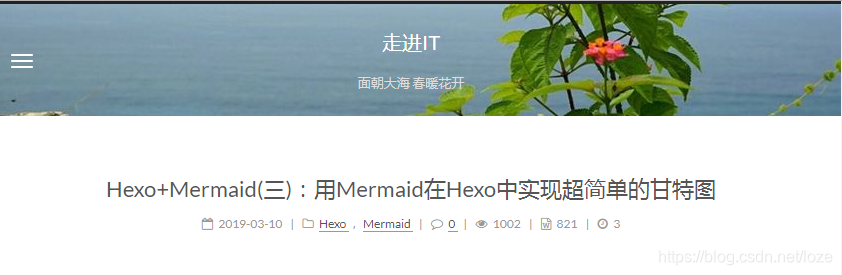
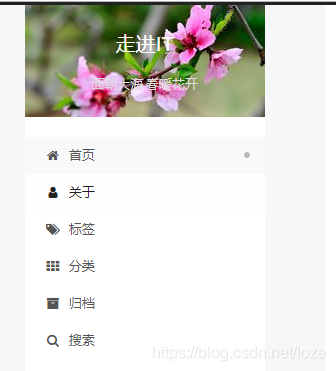
我想要一个不一样的的效果,比如在加一个背景图片。我的副标题是“面朝大海,春乱花开”,我想来一张应景的图片。

找到如下themes\next\source\css\_custom\custom.styl 文件,添加

.site-meta {
background-image: url(/images/log-big.jpg);
@media(min-width: 992px){
background-image: url(/images/log-small.jpg);
}
}
123456

log-big.jpg也可以是其他名字。log-big.jpg的大小为992×112log-small.jpg的大小为240×112,大了只能显示部分,小了可以重复铺满。

注意:在bootstrap中,显示设备宽度<768px为便携设备,<992px为小设备,<1200px为常规设备,大于等于1200px为宽屏幕设备。

正常状态下的效果图
在这里插入图片描述
窄屏状态下的效果图
在这里插入图片描述

增加百度统计分析功能

  1. 访问百度统计http://tongji.baidu.com网站,注册。进入管理菜单,在网站列表下面注册网站并获得访问代码如下。
<script>
var _hmt = _hmt || [];
(function() {
var hm = document.createElement("script");
hm.src = "https://hm.baidu.com/hm.js?ce33112f521e07dfe453757625e4XXXX";
var s = document.getElementsByTagName("script")[0];
s.parentNode.insertBefore(hm, s);
})();
</script>
123456789
  1. 这是一段JavaScript脚本代码。把它放入所有页面的<head>标签最前方,就可以实现访问统计,其中ce33112f521e07dfe453757625e4XXXX是你网站的标识码。
  2. 在NexT中,这段代码已经放入themes\next\layout\_third-party\analytics\baidu-analytics.swig,通过include,当满足条件是就会植入页面头部。
  3. 主题配置中,设置baidu_analytics的值,也就是上面说的标识码,然后植入页面头部代码就会生效。
baidu_analytics: ce33112f521e07dfe453757625e4XXXX
1

利用插件实现字符统计及阅读时长估计

统计文章中的字符,根据字数估算阅读时间,这个功能是通过插件hexo-wordcount来实现的。

  1. 安装插件
npm install hexo-wordcount --save
1
  1. 打开主题配置文件进行配置
# Post wordcount display settings
# Dependencies: https://github.com/willin/hexo-wordcount
post_wordcount:
item_text: true # 是否显示“字数统计”及“阅读分钟”的文字
wordcount: true # 是否显示字数统计
min2read: true # 是否显示估算阅读分钟
totalcount: true # 是否在网站底部显示所有文章字数之和
separated_meta: true
12345678

效果如图
在这里插入图片描述

用leancloud记录访问次数

NexT也集成了leancloud,在leancloud官网
中注册账号,获得app_key和app_id,然后在主题配置文件中进行如下配置。

# Show number of visitors to each article.
# You can visit https://leancloud.cn get AppID and AppKey.
leancloud_visitors:
enable: true
app_id: leanapp_id
app_key: leanapp_key
123456

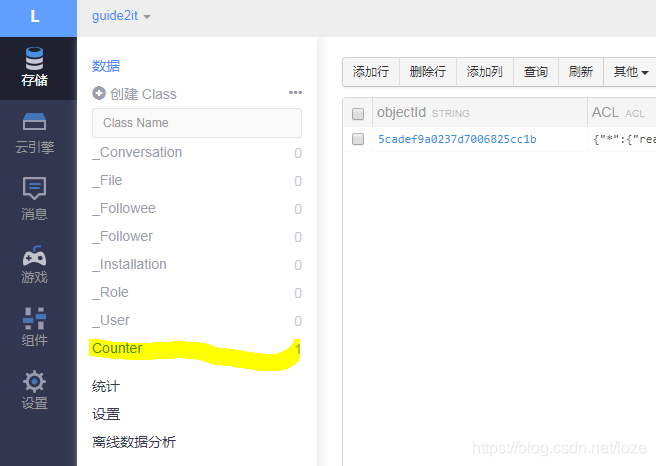
然后在leancloud的控制台中的存储内添加一个Counterclass,这样就可以记录我们每页的浏览量了。
在这里插入图片描述

网站评论系统需要维护用户,用户的留言,因此需要用到数据库。轻博客不具备这些功能,需要借助第三方提供的服务。

在NexT5.1.2版本中,集成了如下第三方的评论系统,只需要在主题配置中就可以打开相应功能。

  • disqus
  • 畅言
  • 多说
  • 有言
  • hypercomments
  • 来必力

其中disqushypercomments来必力是国外的,访问效果可能受影响,多说和有言好像也关闭了,畅言目前可用。

评论系统一个足够,在主题配置中进行相应配置,如果打开多个,会根据themes\next\layout\_third-party\comments\index.swig中的顺序,前面配置成功,后面的就无效了。

以畅言为例,只需要在主题配置中打开下列配置。

changyan:
enable: true #打开开关
appid: #畅言系统网站上申请的appid
appkey: #畅言系统网站上申请的appkey
1234

填入从畅言网站获得的appid和appkey即可开启评论。

给博客添加网站地图sitemap

搜索引擎每天让蜘蛛在网站爬行来抓取页面,网站地图的作用就是给主动给蜘蛛喂数据,网站地图位于网站根目录下,有sitemap.htmlsitemap.xml两种格式。百度搜索引擎及多数搜索引擎使用html格式,谷歌使用xml格式。
两步完成网站地图自动生成功能。

**安装网站地图生成插件**

npm install hexo-generator-sitemap --save
1

重新启动hexo,系统会在public根目录下生成sitemap.xml文件。

给网站设置RSS订阅

1、先安装 hexo-generator-feed 插件

$ npm install hexo-generator-feed --save
1

2、打开 站点配置文件 找到Extensions在下面添加

# RSS订阅
feed:
type: atom
path: atom.xml
limit: 20
hub:
content:
content_limit: 140
content_limit_delim: ' '
123456789

3、打开 主题配置文件 找到rss,设置为

rss: /atom.xml
1

添加搜索功能

在网站内部提供搜索功能,可以进行全文搜索。

1、安装 hexo-generator-searchdb 插件

$ npm install hexo-generator-searchdb --save
1

2、打开 站点配置文件 找到Extensions在下面添加

# 搜索
search:
path: search.xml
field: post
format: html
limit: 10000
123456

3、打开 主题配置文件 找到Local search,将enable设置为true

4、效果如图
在这里插入图片描述

添加畅言评论系统

提供网站评论的网站很多,但由于是第三方免费服务,也许说停就停了。但既然是做静态网站博客,涉及到存储和交互的也只能采用第三方的了。

这里选择畅言作为第三方。

1、进入畅言官方网站注册。

2、登录完成之后,进入后台预览,下方找到畅言秘钥,获得APP KEYAPP ID

3、打开 主题配置文件 找到changyan,对应进行配置。

# changyan
changyan:
enable: true
appid: cyueKr
appkey: a458c21e4100cfb443bf7f760a5
12345

畅言需要网站做备案,但是你完全可以借用朋友已经备案的域名和备案号,通过审核后再改为自己的域名,然后备案下来了再修改回来。

hexo-neat压缩文件

hexo-neat作为一个hexo插件出现,他支持压缩html、css和js文件,可以消除hexo生成网页过程中留下大大片空白,压缩输出文件的体积。使用方法如下:

  1. 使用npm安装hexo-neat插件

    $ npm install hexo-neat --save
    1
  2. 站点配置文件中打开开关。

    neat_enable: true  #打开总开关
    neat_html:
    enable: true #打开压缩html文件开关
    exclude: #html的排除列表

    neat_css:
    enable: true #配置CSS文件开关
    exclude:
    - '**.min.css' #配置排除文件

    neat_js:
    enable: true #js压缩开关
    mangle: true #是否破坏文件名
    output: #是否输出log日志,默认为true
    compress:
    exclude:
    - '*.min.js' #js文件压缩排除列表
    1234567891011121314151617

对于插件,除了日志输出外,用户基本无感。

Hexo+NexT介绍到这里,我认为已经可以很好地完成任务了。它所提供的一些基础功能及配置,都已经进行了讲解。你已经可以随心所欲地配置一个自己的博客环境,然后享受码字的乐趣。

把博客托管到Github上,是个很好的想法,没有自己空间的博主肯定很欢迎。其实文章编译之后,他就是一个非常简单的静态网站。部署的目的就是简单的把静态网站文件夹拷贝到Github的一个仓库里,然后把这个仓库当作一个网站文件夹,仅此而已,非常简单。所以,没有讲的价值。

但是,作为一个Coder,研究了Hexo,总得来点真本事,提出一个方案,解决一个痛点,然后实现它。

痛点当然有,每次用Typora码文章,习惯对文中图片所见即所得,无奈,Typora对图片的处理方式,Hexo不认可,转换之后url错乱,无法识别。所以,我希望TyporaHexo用统一的方式处理图片,在Typora中和Hexo编译之后都可以正常显示。

没有人解决,我就想解决它。

Hexo博客专题索引页

1. Typora的图片和NexT的资源文件的统一

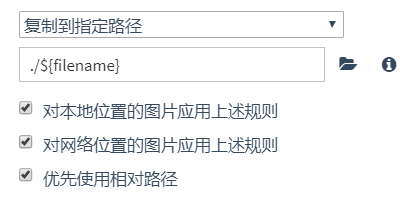
Typora中,图片可以采用相对位置保存,并且可以用文章文件名进行灵活定制。如果我们在Typora中,把图片的保存位置指定为与文章同名的文件夹,那么跟NexT提供的资源文件夹就不谋而合了。

Typora中,把图片的存储位置设置为./${filename},见图。
在这里插入图片描述

NexT的主题配置文件中,打开资源文件夹功能,Hexo编译时会把资源文件夹下的资源对象,根据引用它的页面而赋予相应的url

post_asset_folder: true
1

如果,我们把这两者统一起来,在markdown文章中我们能够在文章编译为html之前,实现这样的转换

![img](postname/sample.jpg) => {%asset_img sample.jpg%}
1

那就幸福了:在Typora下采用![img](postname/sample.jpg)使用图片,享受所见即所得,在编译过程中转化为资源文件,自动获得,正确的url,鱼与熊掌兼得,完美。

2. 解决思路

2.1 了解Hexo运作模式

研究Hexo的项目结构,主要研究页面的编译过程,也就是Hexo g命令是如何执行的。

根据Hexo的概述,Hexo项目的执行过程如下:

  1. 初始化
  2. 载入文件
  3. 执行指令
  4. 结束

第一步:初始化

初始化阶段,会创建Hexo实例,各种配置,各种插件,各种扩展全部就位,就等待载入文章进行处理。

Hexo通过项目包管理文件package.json引入各种插件扩展。

第二步:载入文件

载入source下所有的文章及样式、脚本等资源。如有指令,则可以监控该文件下面文件的变化。

第三步:执行指令

执行控制台指令,根据指令执行相应的命令。

第四步:退出

2.2 着手点

需要达成的目的,主要在编译页面的过程中,也就是主要在渲染render阶段。

Hexo的源代码中固然可以找到蛛丝马迹,但是这太麻烦了,速度也不快。有没有其他的方式。

换换思路,研究下Hexo提供的API,突然发现,其中的扩展是这样的。
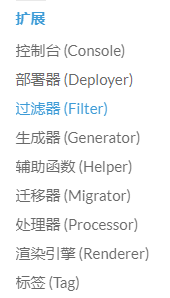
在这里插入图片描述

基本上所有的扩展都能够望文生义,最有可能入手的地方就是Filter过滤器。

把它的定义摆上来:

hexo.extend.filter.register(type, function(data){
}, priority);
12
  • type是类型,表示过滤器的类型,过滤器的类型是什么意思?好吧,看看有什么类型

    before_post_renderafter_post_renderbefore_exitbefore_generate,这就是过滤器的插入时机啊。

  • function(data)是回调函数,这个很好地理解,其中的data是什么,回头再说。

  • prioritytype是过滤器的插入时机,如果在同一时机插入多个过滤器,那么就由priority来决定执行先后顺序,`priority值小就先执行。

重点在render

在上面的过滤器类型(就是过滤器的插入点)中,有一个重要的类型是before_post_render,意思就是在渲染之前执行过滤器。查一下Hexo的API,渲染的过程如下:

  • 执行 before_post_render 过滤器
  • 使用 Markdown 或其他渲染器渲染(根据扩展名而定)
  • 使用 Nunjucks 渲染
  • 执行 after_post_render 过滤器

好啊,那么我们拿before_post_render来尝试一下。

2.3 编写一个过滤器

找一个例子学习一下

https://hexo.io/plugins/里面找一个简单的过滤器例子,发现它就是一个特别简单的Node的包。比如过滤器插件hexo-filter-auto-spacing,它的文件清单如下:

其中有用的也就是package.jsonindex.js。而package.json也就是典型的Node包文件,它的输出对象由main字段指定,本例中main字段指向index,也就是我们的index.js文件。

看一下index.js内容

var assign = require('deep-assign');
var renderer = require('./lib/renderer');
hexo.extend.filter.register('before_post_render', renderer.render, 9);
123

再看一下/lib/renderer.js的内容

var reg = /(\s*)(```) *(.*?) *\n?\[hide\]([\s\S]+?)\s*(\2)(\n+|$)/g;

function ignore(data) {
var source = data.source;
var ext = source.substring(source.lastIndexOf('.')).toLowerCase();
return ['.js', '.css', '.html', '.htm'].indexOf(ext) > -1;
}

exports.render = function (data) {
if (!ignore(data)) {

data.content = data.content
.replace(reg, function (raw, start, startQuote, lang, content, endQuote, end) {
return start + end;
});
}
};
1234567891011121314151617

太简单了,对于上面这个例子,就是实现了过滤器的定义

hexo.extend.filter.register(type, function(data){
}, priority);
12

照猫画虎

Hexo项目文件并排新建一个文件node_modules,并在里面新建项目hexo-image2asset。结构如下:

├─guide2it-blog
│ ├─node_modules
│ ├─public
│ ├─scaffolds
│ ├─source
│ │ ├─about
│ │ │ └─index
│ │ ├─categories
│ │ ├─images
│ │ ├─tags
│ │ └─_posts
│ │ ├─2019-04-19-01测试插件.md
│ │ └─2019-04-19-01测试插件
│ │ └─guide2it.jpg
│ ├─themes
│ │ └─next
└─node_modules
└─hexo-image2asset
├─package.json
└─index.js
1234567891011121314151617181920

至于为什么要这样,这都是血的教训。对于Node项目,新建模块应该在/guide2it-blog/node_modules下面,我之前也是这样建立的,后来因为莫名奇妙的问题,采用万能的修复大法delete node_modules & npm install之后,我的hexo-image2asset项目找不到了,驾鹤西去了。

而我把hexo-image2asset按上述方式布置,它也在Node项目的搜索路径上,也可以避免万能修复大法重蹈覆辙。

探究data的数据结构

为了弄清楚回调函数中data的结构,我决定用一个例子来测试。

请看2019-04-19-01测试插件.md的内容

---
内容略
---
测试hexo-image2asset插件
下面我要加入一张图片了。
![测试](2019-04-19-01测试插件/guide2it.jpg)
123456

然后我编写index.js,内容如下:

var deal_image=function(data){
console.log(data);
}
hexo.extend.filter.register('before_post_render', deal_image, 9);
1234

执行hexo g激发渲染过程。

Document {
layout: 'post',
title: '测试插件',
date: moment("2019-03-05T09:00:00.000"),
_content:
'\n测试hexo-image2asset插件\n\n下面我要加入一张图片了。\n\n![测试](2019-04-19-01测试插件/guide2it.jpg)',
source: '_posts/2019-04-19-01测试插件.md',
raw:
'---\nlayout: post\ntitle: \'测试插件\'\ndate: 2019/3/5 09:00:00\ncategory: [\'博客\',\'Hexo\']\ntags: [\'博客\',\'Hexo\',\'NexT\']\n---\n\n测试hexo-image2asset插件\n\n下面我要加入一张图片了。\n\n![测试](2019-04-19-01测试插件/guide2it.jpg)',
slug: '01测试插件',
published: true,
updated: moment("2019-04-21T01:15:15.699"),
comments: true,
photos: [],
link: '',
_id: 'cjuprkojw0001o4d4cbawzsgo',
path: [Getter],
permalink: [Getter],
full_source: [Getter],
asset_dir: [Getter],
tags: [Getter],
categories: [Getter],
content:
'\n测试hexo-image2asset插件\n\n下面我要加入一张图片了。\n\n![测试](2019-04-19-01测试插件/guide2it.jpg)',
site: { data: {} } }
12345678910111213141516171819202122232425

原来这个data是一个Document,它的内容及结构如上所示。跟内容相关的主要有三个字段_contentcontentrawraw表示原始文章,_content这种带前缀_的一般是内部属性,不能动,那么就动content的内容。

按照资源对象的格式要求,应该把

![测试](2019-04-19-01测试插件/guide2it.jpg)转换为

{%asset_img guide2it.jpg 测试%}

转换图片对象为资源对象

这个需要采用正则表达式来全局转换,被转换的字符串中有文章名字,这个需要首先找出来。

已知source形如_posts/2019-04-19-01测试插件.md,那么文件名应该是,找到最右边的/,其后的字符串,去掉.md

建立正则表达式来进行替换,把[]内的内容用()确定为$1,把图片文件名用()定义为$2,最终的正则表达式如下。

插件的index.js完整内容如下。

var deal_image = function(data) {
var reverseSource = data.source.split("").reverse().join("");
var fileName = reverseSource.substring(3, reverseSource.indexOf("/")).split("").reverse().join("");
var regExp = RegExp("!\\[([^\\f\\n\\r\\t\\v\\[\\]]+)\\]\\(" + fileName +
'\\/([^\\\\\\/\\:\\*\\?\\"\\<\\>\\|\\,\\)]+)\\)');
data.content = data.content.replace(regExp, "{%asset_img $2 %}""g");
return data;
}
hexo.extend.filter.register('before_post_render', deal_image, 9);
123456789

这里有个bug,替换对象为"{%asset_img $2 $1 %}"时,如果正则匹配的%1是纯数字,则它被解释为图片宽度,这好像就离题了。所以暂时把$1去掉。